
Getting started with speech to text is usually pretty easy. The first time you speak and watch your words appear on screen, it feels like magic. But then the mistakes start showing up. A name gets transcribed wrong. A sentence breaks off in a weird place. You spend as much time correcting as you would have spent typing.
The good news is that most speech to text errors are predictable and easy to prevent. Here are five practical tips that will make your voice dictation noticeably more accurate starting with your very next session.

Tip 1: Speak in Complete Sentences, Not Fragments
One of the most common mistakes new users make is speaking in short bursts or incomplete phrases. They say a few words, pause, say a few more. The problem is that speech recognition engines need context to figure out which words fit. Without it, they guess wrong more often.
Try speaking a full sentence in one breath before pausing. You do not need to speak fast, just steadily and continuously. Most people notice a meaningful improvement in accuracy just from this one change.
Tip 2: Reduce Background Noise Before You Start
Voice dictation tools are sensitive to sound. A TV in the background, an air conditioning unit, or even a noisy keyboard can confuse the microphone. The software tries to separate your voice from other sounds, but it is not perfect.
Before you dictate, take a moment to reduce noise in your environment. Close a window, turn down the volume on other devices, or find a quieter spot. It only takes 30 seconds and it makes a noticeable difference in how clean your transcription turns out.
Tip 3: Say Punctuation Out Loud
Most voice typing tools support punctuation commands. Instead of hoping the software adds commas and periods in the right places, you can say them yourself. Try saying “comma” or “period” as you speak, and those marks will appear in your text.
Other useful commands you can speak include “new paragraph”, “question mark”, and “exclamation point”. Once this becomes a habit, your transcriptions need far less editing before they are ready to use.
Tip 4: Use a Proper Microphone When You Can
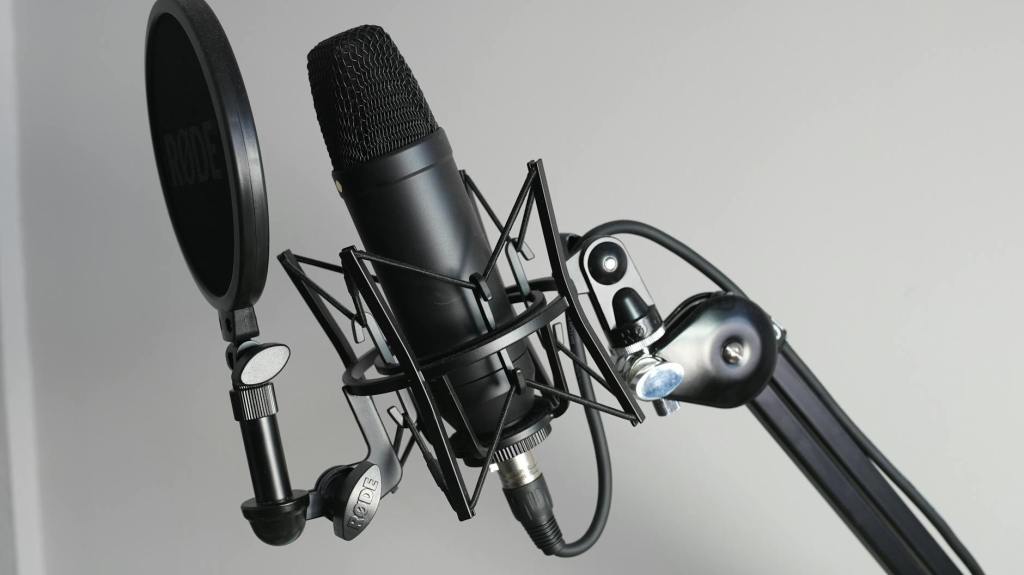
The built in microphone on your laptop is good enough for video calls, but it is often too far from your mouth and too sensitive to ambient sound for reliable voice dictation. If you use speech to text regularly, a small investment in a decent headset or external microphone will pay off immediately.
You do not need anything expensive. A basic USB headset with a boom microphone sits close to your mouth, picks up your voice clearly, and blocks out most background noise. Many writers and productivity focused professionals consider it one of the best tools they own.
Tip 5: Speak Naturally, Not Too Carefully
It feels intuitive to slow down and enunciate very carefully when using speech to text, as if speaking to someone who does not know your language well. But this actually tends to make accuracy worse, not better. Modern voice dictation is trained on natural speech.
Speak at your normal pace, in your normal voice. Relax and let words flow the way they do in conversation. You will find the software keeps up with you better than you expect, and your transcriptions sound more natural too.
One More Thing: Your Tool Matters
Even with perfect technique, the quality of your voice dictation tool has a big impact on your results. Some tools are built specifically for the Chrome browser and work across every website you visit. Others are limited to certain apps or operating systems.
WriteByVoice is a Chrome extension designed specifically for voice typing across the web. It works in Gmail, Google Docs, LinkedIn, Slack, and anywhere else you have a text field. If you spend a meaningful amount of time writing online, it is worth trying.
Free plan included · Works in Chrome on any website · No credit card required
 blog.writebyvoice.com
Leave a comment